1Password SDK concepts
Authentication
1Password SDKs support authentication with the 1Password desktop app or with a 1Password Service Account.
1Password desktop app
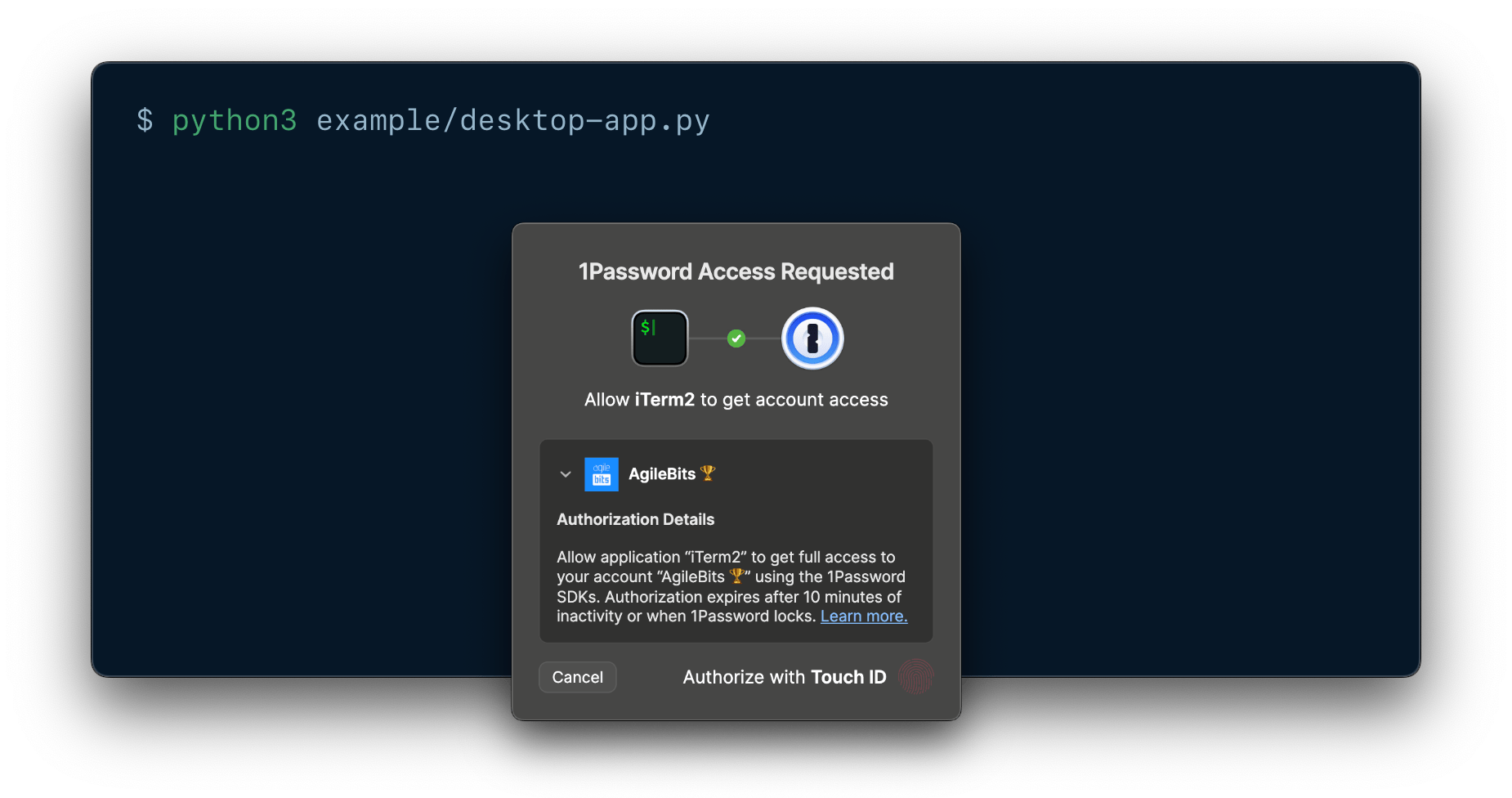
You can build local integrations between 1Password and local applications or scripts that allow end users to authorize access directly on their device with prompts from their 1Password desktop app.
Local authorization prompts from the 1Password desktop app allow end users to approve requests from your integration the same way they unlock the app, like with biometrics, their 1Password account password, their identity provider, or other supported methods.
Prompts from 1Password clearly detail which account the integration will access, the process requesting access, and the scope and duration of that access. If the user approves, they securely grant the integration temporary access to the entirety of the authorized 1Password account. Access expires after 10 minutes of inactivity or when the user locks their account in the app.
This method allows end users to use your integration with minimal setup and no token management, and enables secure, human-in-the-loop approval for sensitive workflows.
1Password Service Account
Service accounts enable you to follow the principle of least privilege in your project, and automate access without human approval. Service account tokens are scoped to specific vaults and Environments, and are restricted to specific permissions in each vault.
Service accounts aren't tied to an individual account, and work well in shared environments. They can't access your built-in Personal, Private, or Employee vaults, and they can only manage permissions for vaults created by the service account.
Comparison
Use the following table to decide which authentication method best suits your use case.
| Use case | Recommended authentication method | Why this method |
|---|---|---|
| Quick testing and exploration | Desktop app | Desktop app authentication allows you to get started testing the SDK with your existing account credentials, no token needed. |
| Minimal setup required for end users | Desktop app | New users don't need to learn about service accounts, and can get started quickly with their existing account credentials. |
| Local integrations | Desktop app | Uses local authorization prompts from the 1Password desktop app. |
| Human-in-the-loop approval for sensitive workflows | Desktop app | Authorization prompts from the 1Password desktop app clearly detail which account the integration will access, the process requesting access, and the scope and duration of that access. |
| Full account access required | Desktop app | Desktop app authentication grants access to all the vaults you have access to, including your built-in Personal, Private, or Employee vaults. |
| Least-privilege access | Service account | You can scope service account tokens to only the vaults, Environments, and permissions your integration needs. |
| Automate vault management | Desktop app | With desktop app authentication, you can manage any vault you have the appropriate permissions in. Service accounts can only manage permissions for vaults created by the service account. |
| User-specific auditing | Desktop app | With desktop app authentication, actions can be traced to individual users for compliance and security reviews. |
| Automated access | Service account | Service accounts allow you to automate access with no user present. |
| Shared building | Service account | Service account tokens aren't tied to an individual user. |
Autofill behavior
Which credentials 1Password suggests
When you create a Login or Password item, use the following IDs and field types for the credentials you want 1Password to suggest and fill:
| ID | fieldType | Description |
|---|---|---|
username | Text | The username associated with the login. |
password | Concealed | The password associated with the login. |
See an example of how to create a Login item.
Where a login is suggested and filled
The Item struct for Login and Password items contains an optional list of websites, so you can manage where 1Password autofills your credentials. Autofill behavior options include:
| Autofill behavior | Description |
|---|---|
AnywhereOnWebsite | Default. 1Password autofills credentials on any page that’s part of the website, including subdomains. |
ExactDomain | 1Password autofills credentials only if the domain (hostname and port) is an exact match. |
Never | 1Password never autofills credentials on this website. |
Environments
1Password Environments allow you to organize and manage your project secrets as environment variables, separately from the items in your 1Password vaults. You can then read the variables from your Environments using 1Password SDKs.
Item categories
Items in 1Password have a category that determines some characteristics about the item, like the fields available by default and whether 1Password suggests the item when you sign in to a website. Learn more about the different types of items you can save in 1Password. See supported item categories.
Item states
ItemOverview exposes one of two states: Active or Archived.
| Item state | Description |
|---|---|
| Active | An item located inside a vault. (Default) |
| Archived | An item that has been moved to the Archive. 1Password doesn’t include archived items in search results or suggest them when you fill in apps and browsers. You can keep archived items as long as you’d like. |
Field types
1Password SDKs currently support operations on the following field types. You can only retrieve and make changes to supported field types.
| Field type | Description |
|---|---|
Address | An address. Specify each part of the address in the field's details. Don't set or edit the address field's value directly. |
Concealed | A secret value that 1Password conceals by default, like a password, API key, or credit card PIN. |
CreditCardNumber | A credit card number. |
CreditCardType | Type of credit card. For example Visa, Mastercard, or American Express. |
Date | A date, formatted as YYYY-MM-DD. |
Email | An email address. |
Menu | A menu of predefined options included in certain item types, like Database, Server, Email Account, and Wireless Router items. |
MonthYear | A month-year combination, formatted as MM/YYYY. |
Notes | A note about an item. |
Phone | A phone number. |
Text | A text string. |
Totp | A one-time password field. Must be either a valid TOTP URL or a one-time password seed. |
Url | A web address to copy or open in your default web browser, not used for autofill behavior. You can add autofill websites to set where 1Password suggests and fills a Login or Password item. |
Reference | The valid ID of another item in the same vault. |
SSHKey | Must be a valid SSH private key – a decrypted, PEM-encoded string. SSH key fields can only be added to items with the SSH Key category. You can add one SSH key field per item. 1Password will generate a public key, fingerprint, and key type which are stored in the SSH key field details. |
If an item contains information saved in unsupported field types, you won't be able to update or delete the item.
See supported functionality for more information.
Files
Document file
A document file is a file stored in 1Password as a Document item. You can read, save, and replace document files saved in 1Password using the SDKs.
Field file
A field file is a file attachment saved in a 1Password item. You can read, save, and remove file attachments saved in 1Password using the SDKs.
Query parameters
otp
You can use the otp (or totp) attribute query parameter to retrieve one-time passwords with the Resolve function.
Append the ?attribute=otp query parameter to a secret reference that points to the field where your one-time password is stored. For example:
ssh-format
You can use the ssh-format attribute query parameter to fetch a private SSH key in OpenSSH format using the Resolve function.
Append the ?ssh-format=openssh query parameter to a secret reference that points to the field where your SSH private key is stored. For example:
Rate limits
1Password Service Accounts have hourly and daily rate limits. These also apply while using a service account with an SDK. Learn more about service account rate limits.
SDK client
When you initialize an SDK, you create a 1Password SDK client instance and pass your configuration parameters to the SDK core. You can instantiate multiple SDK clients sequentially or in parallel using the same or different service account tokens.
Secret references
1Password SDKs allow you to use secret reference URIs to avoid the risk of exposing plaintext secrets in your code. Secret references reflect changes you make in 1Password, so when you use the SDK to load a secret you get the latest value.
Secret references use the following syntax:
Learn more about secret references.
State management
The 1Password SDK client sets up an authenticated session with the 1Password servers and automatically refreshes it whenever it expires. As a result, you don't need to worry about managing your authentication and session keys.
Unique identifiers
A unique identifier (ID) is a string of 26 numbers and letters that can be used to identify a 1Password object, like a vault, item, section, or field. IDs only change if you move an item to a different vault.
1Password SDKs require you to use IDs rather than names to refer to 1Password objects while performing item management operations.
You can get IDs by listing vaults and items.
Vault permissions
With 1Password Business and 1Password Teams, you can manage the permissions groups have in vaults.
In 1Password Business, all vault permissions have a hierarchical relationship in which narrower permissions require broader permissions to be granted alongside them. Learn more about 1Password Business vault permissions.
1Password Teams includes three broad permission levels made up of collections of the granular vault permissions available in 1Password Business. You'll need to grant or revoke all the permissions for the desired permission level. Learn more about 1Password Teams vault permissions.